Step 1: Sign up as a ToMoviee Creative Engine developer user
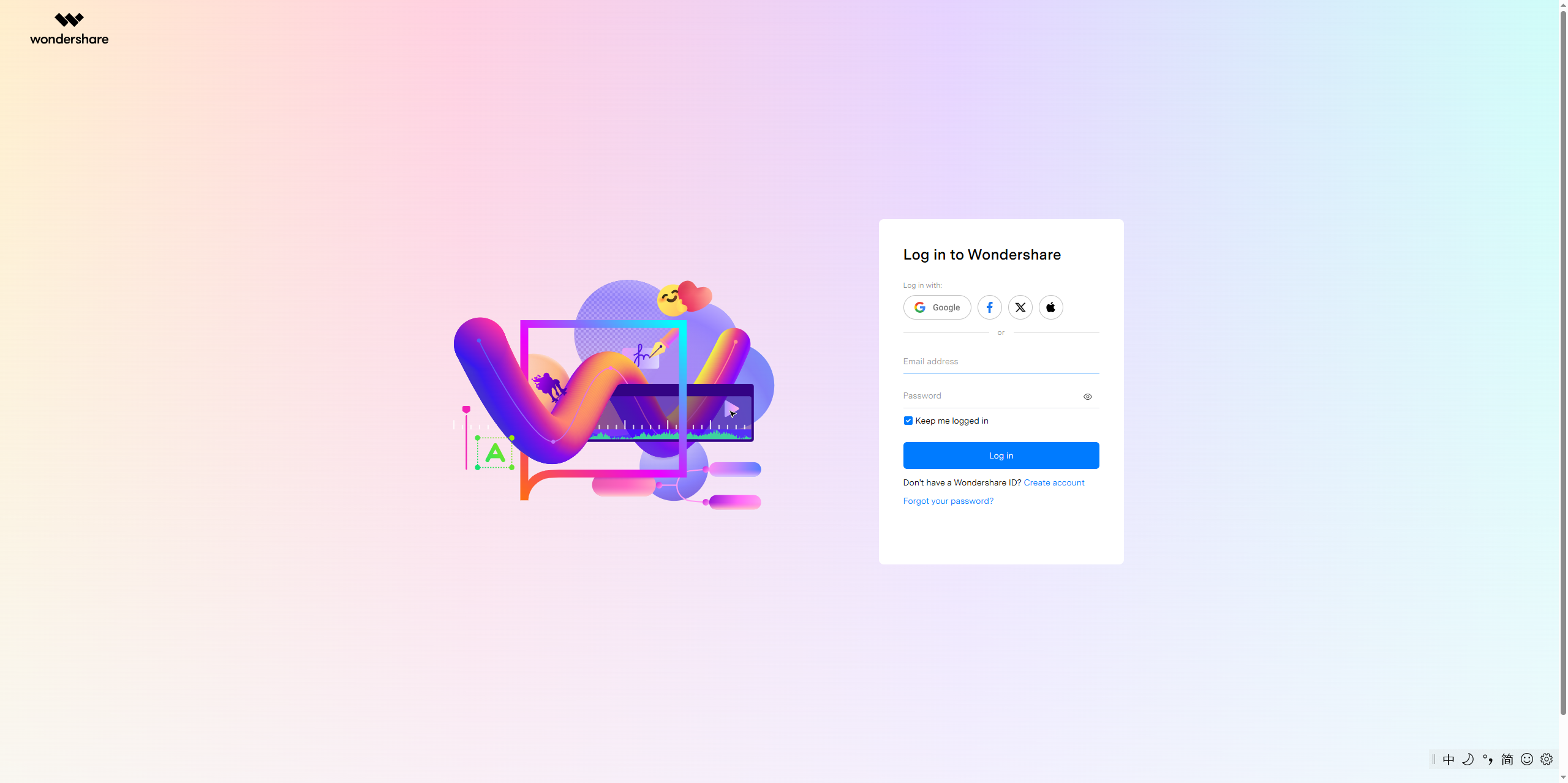
Log in to ToMoviee Creative Engine with your Wondershare account. If you do not have one, simply sign up and log in.
Signup URL: https://www.tomoviee.ai/
Step 2: Go to the console
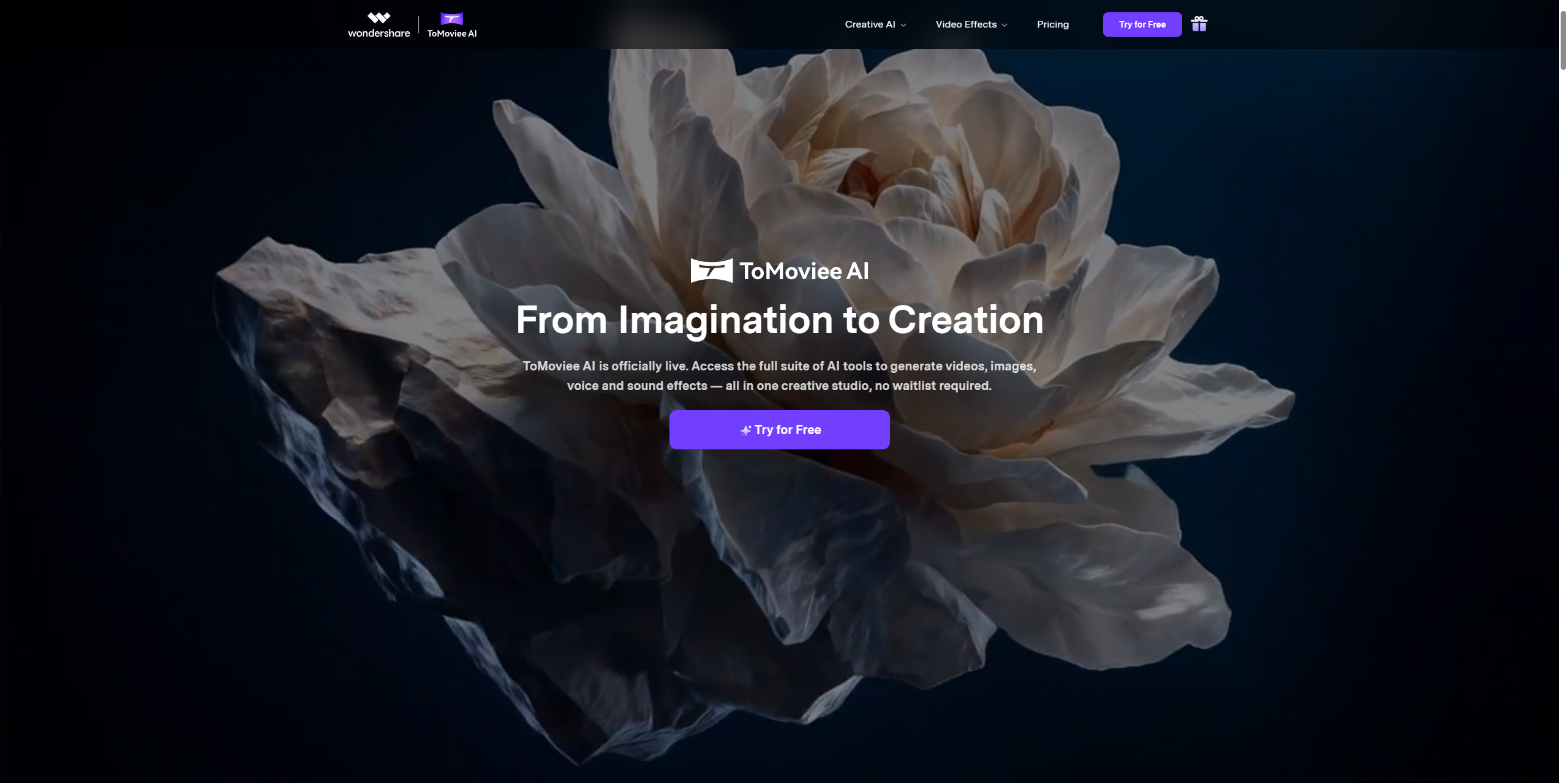
Choose “ToMoviee Creative Engine” > “Creative Engine.”
Step 3: View activated services
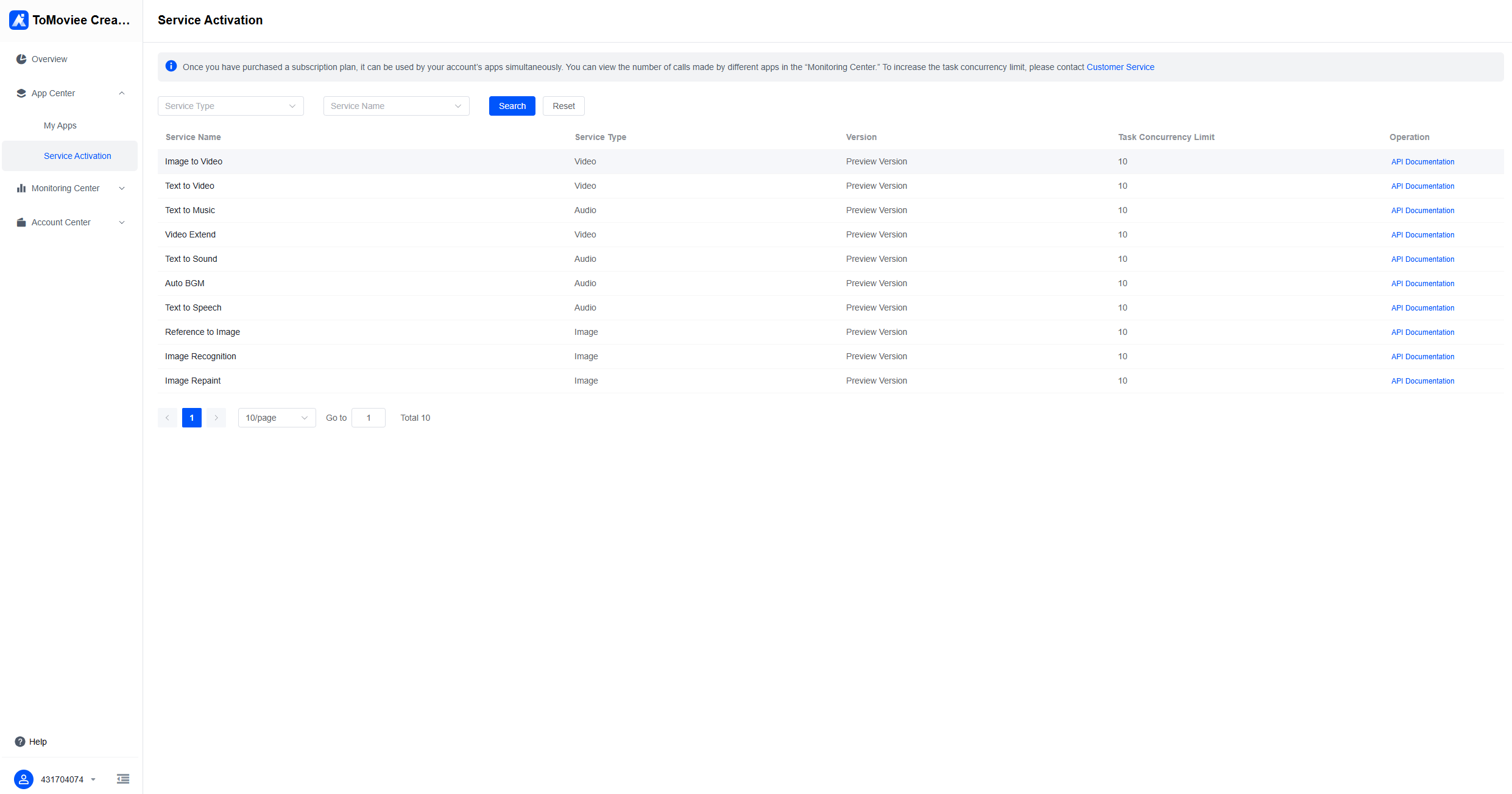
ToMoviee Creative Engine grants users access to all services by default. You can go to “Application Center” > “Service Activation” to view details, integration guide, and credit consumption plans for each service.
#
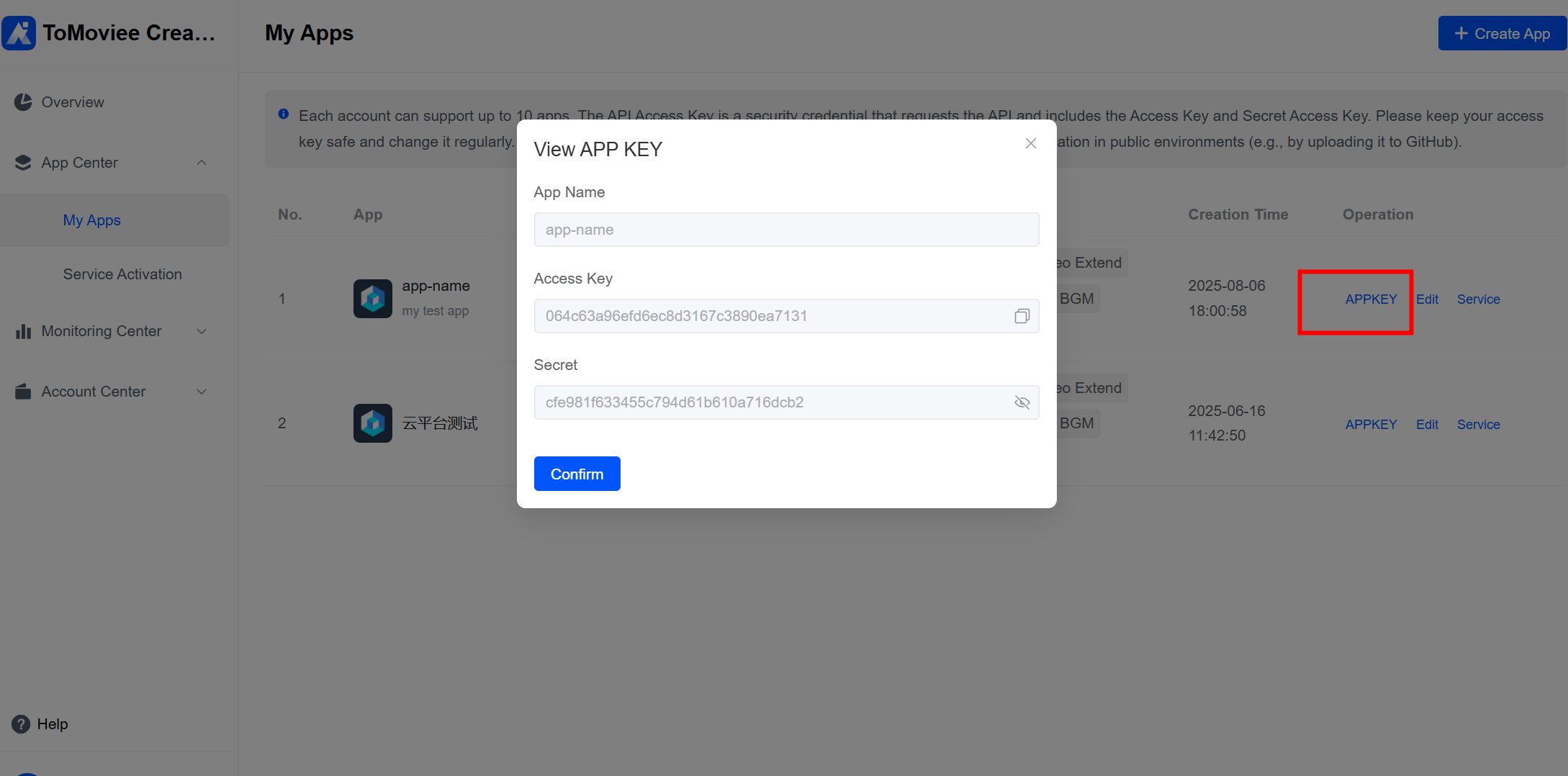
Step 4: Get App KeysBefore calling the services of ToMoviee Creative Engine, make sure you have created an application. This is necessary to generate an Access Key pair at the application level. The Access Key pair is a security credential required for making API requests and consists of an Access Key and a Secret Access Key. Please store your keys securely and rotate them regularly. Do not share or expose them in public environments (such as uploading to GitHub) to ensure the security of your cloud resources.
ToMoviee Creative Engine has enabled all service permissions by default for your created application. If you need to configure specific services for different business scenarios, you can separately configure the associated services in the application list.
To get an App Key, choose “Application Center” > “My Applications” in the left menu bar of the console, create an application, and then click “App Key” in the “Actions” column.
Step 5: Top up credits and get started
Once your credits are topped up, you can get started with the service. For details, see Quick Start.